Run Anything
What is run anything? In short it gives you the possibility to run any object in BC without the need of customizing any rolecenters or pages. But that is not all. You can create groups and create menus visible for that group. Ever wanted to share your Business Central bookmarks with your department? Or if you are an administrator and you just want to start an object without adding it to the actions or your bookmarks first. Well now you can do without any extension development or personalization.
The idea
Having your own menu which can be easily setup with all kind of objects you want to run in a tree view pretty similar to the old menu suite from Dynamic NAV days.
Out of the box the part is added to the Sales Order Processor, Secure Admin, Accountant and Business Manager Rolecenter. Howver you can easily create a page extension and add that part to all rolecenters you like and even add it as a factbox on pages where you want to take advantage of the tree.
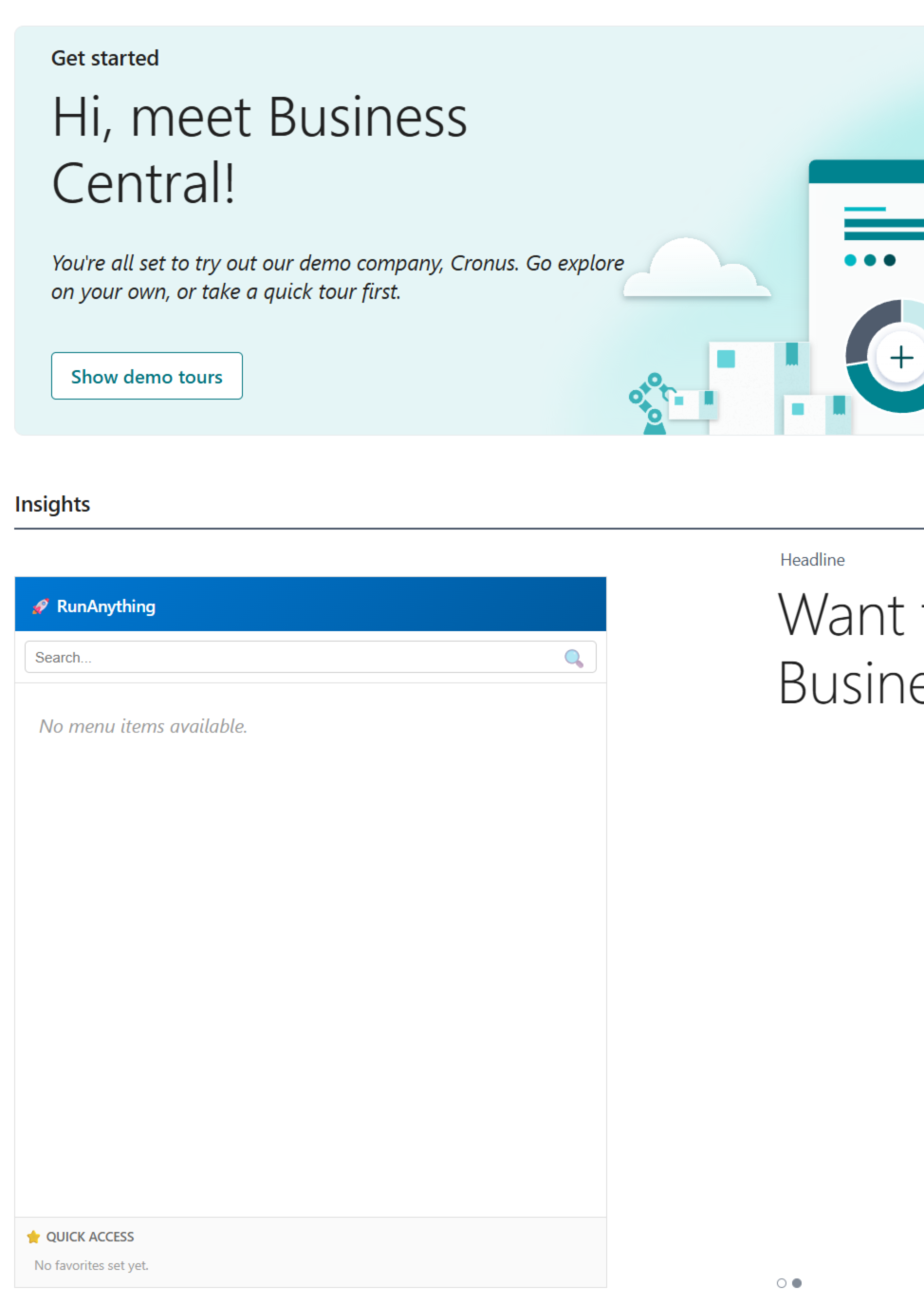
The user menu setup
There are three places where you can setup the RunAnything shortcuts / bookmarks. One is just for you, your own user. Stuff you want to use and not share with anybody else.
To find the setup seach for My Menu. You might feel the urge to set a bookmark for that page but we can also use it as example for your first menu item.
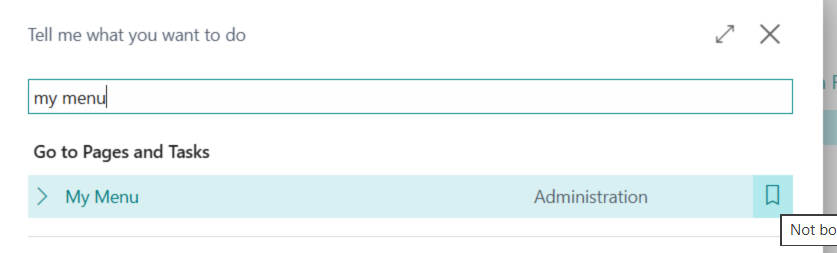
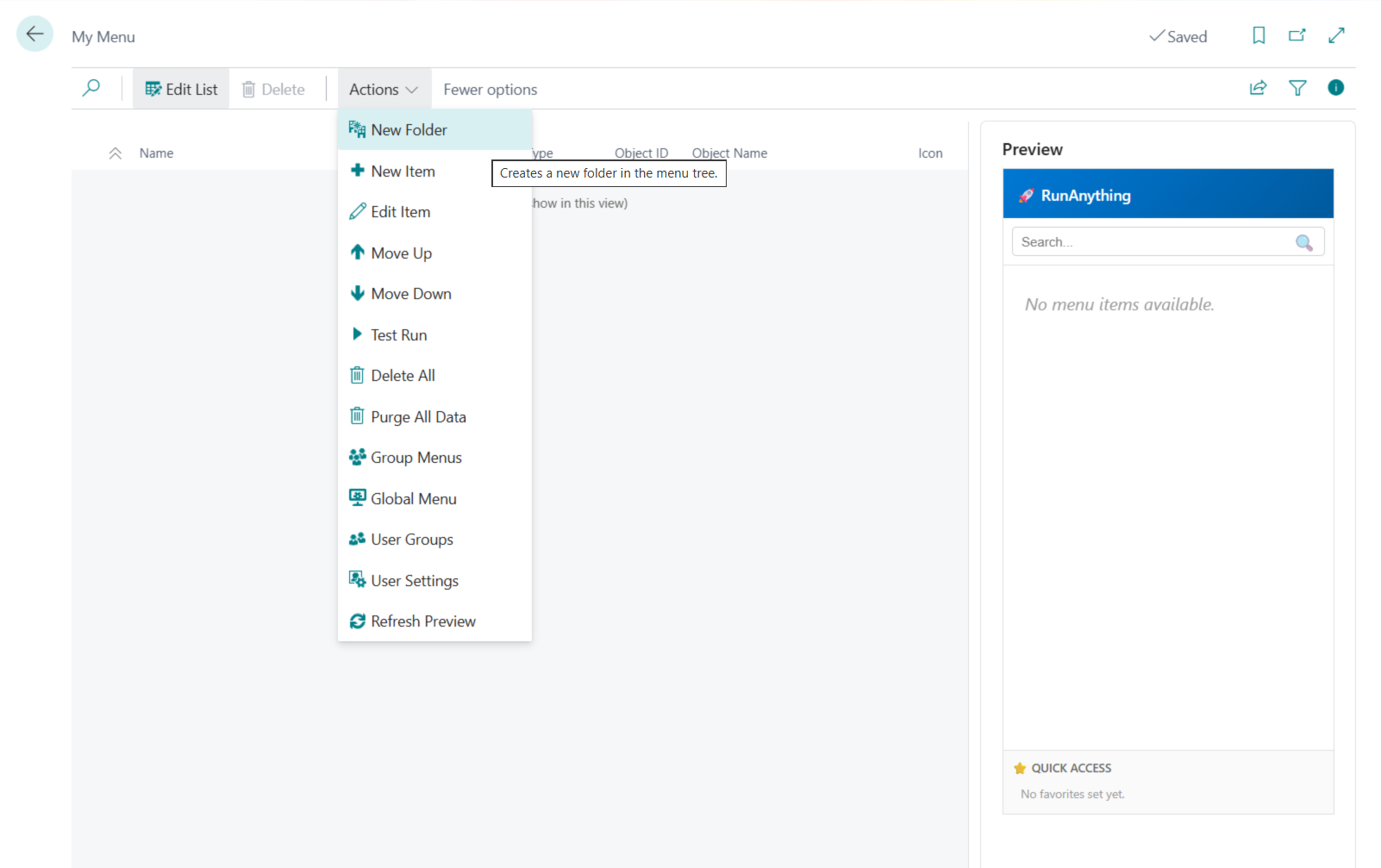
In the My Menu page using actions you can start creating menus for your user id. On the right site in the small part you will see a preview of the menu contructed. Lets start by creating an item. Select + New Item.
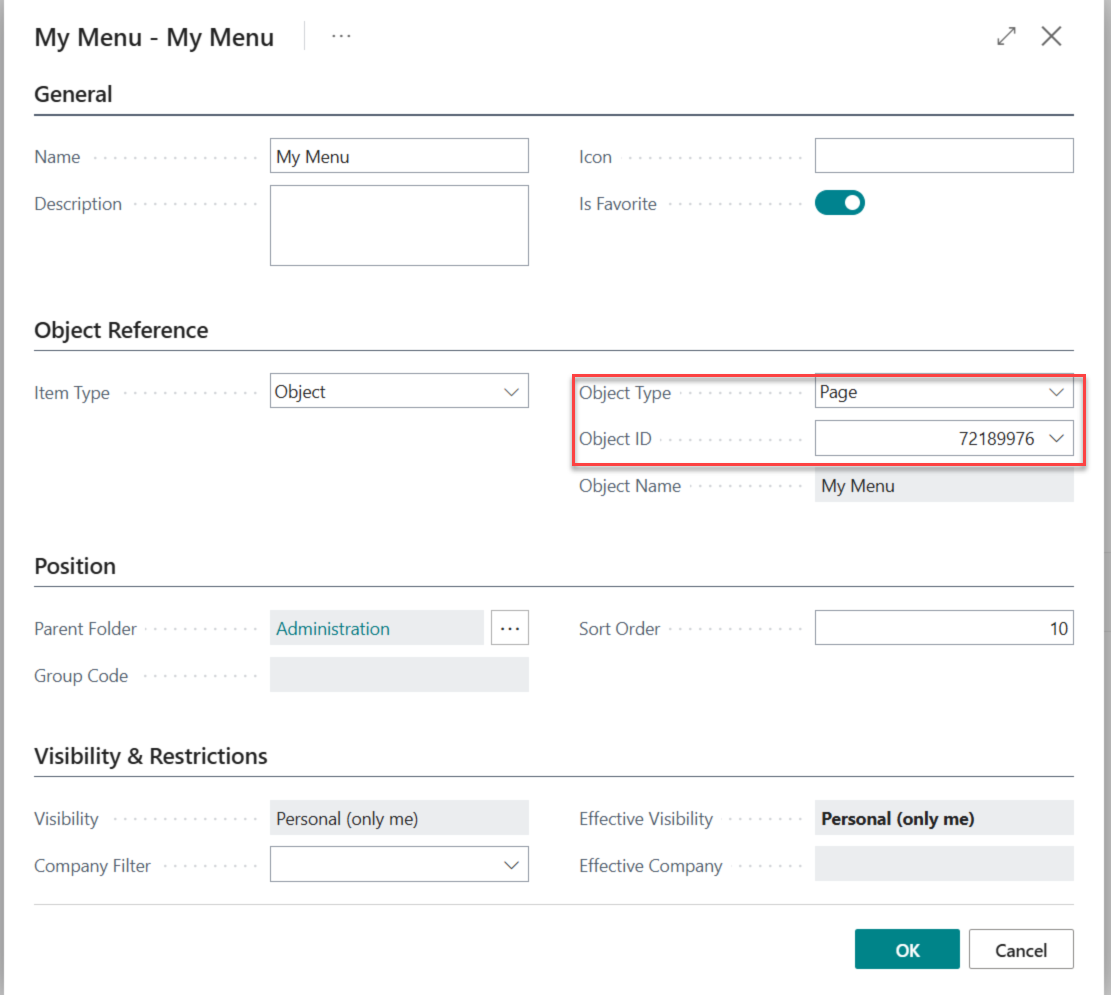
Fill in at least the Name in the General tab. You can mark it Is Favorite then it will also appear in the bottom of your tree. Lets do this. In the Icon - you can put an emoji character. This one will be changed to a unicode string - and then it will appear in the tree view. However you can leave that field also blank as all of the possible object types do have their own default icon. Lets add a page here. You item will be attached to the root.
Next create a new Folder and call it Administration. Then open the Item again by Edit Item and assign that item to the folder.
Object Type is in this case Page for the item and the page number is 72189976. If you do not know a specific page or object, you can also use the drop down.
Now we do have created our first menu item and the preivew of the menu tree on the right side is updated.
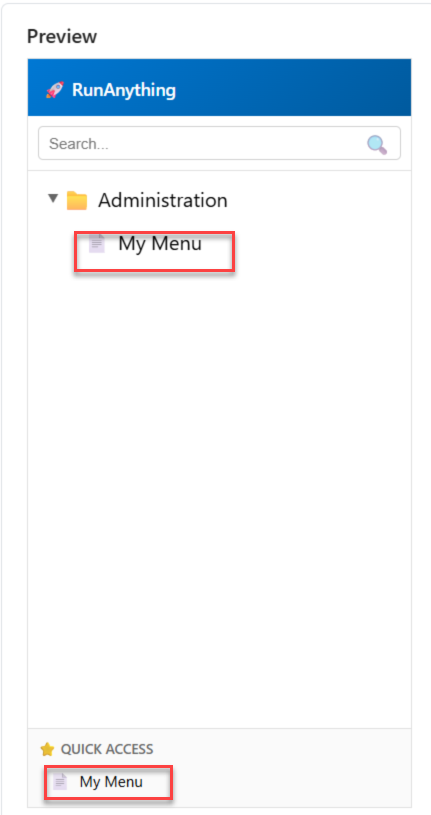
You can start all objects available in the system however for some you should know what you are doing. Pages and reports are the most easy ones. But you can also start a table - which will open a new browser window and show a page with all fields in that specific table. You can also start an XML-Port - that one will open with the request page. And you can even start query objects. Most of them might not make sense however you might have some where you want to save the data they are exporting and you can do so by starting the query and then you will get a confirmation message and then the data will be saved as csv file. For codeunits you should really know what you are doing this is mostly meant for developers who quickly want to start a codeunit they have deployed without the need to attach them to a page.
You can set your menu items to be only visible in specific companies. You might have different tasks to do in different companies. If you do not specify a company the menu will be shown in all of the companies otherwise only in that selected one.
What about security?
If you open the RunAnything User settings, you can choose what specific users are allowed to run.

If you want users only to use pages and reports, you can set this up.
Group Setup
Use the search function and lookup Group Setup and click New to create a new group.
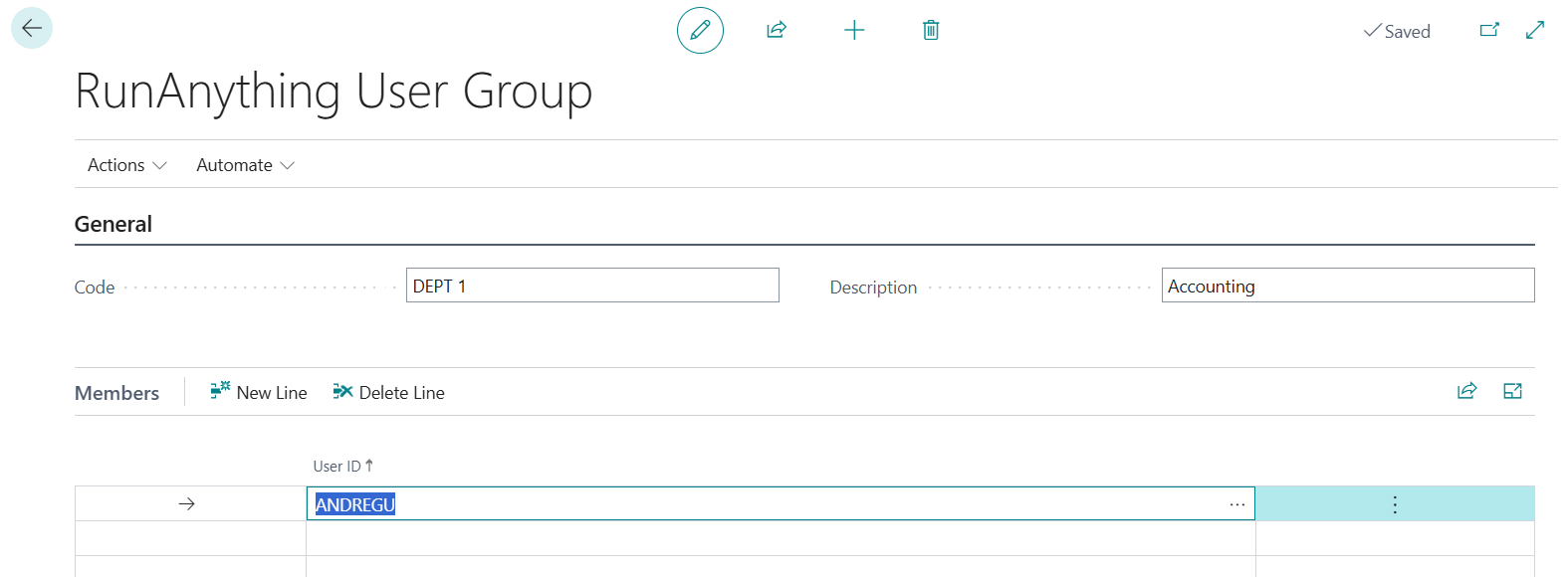
Mine is called give it at least a code. On the bottom area you can assign users to that specific group. I am now a member of that group, so I should see the menu items in my menu tree. Lets create another group Dept 2 where I am not a member yet.
Lets setup two group menus. Search for Group Menu open it and select the first group.
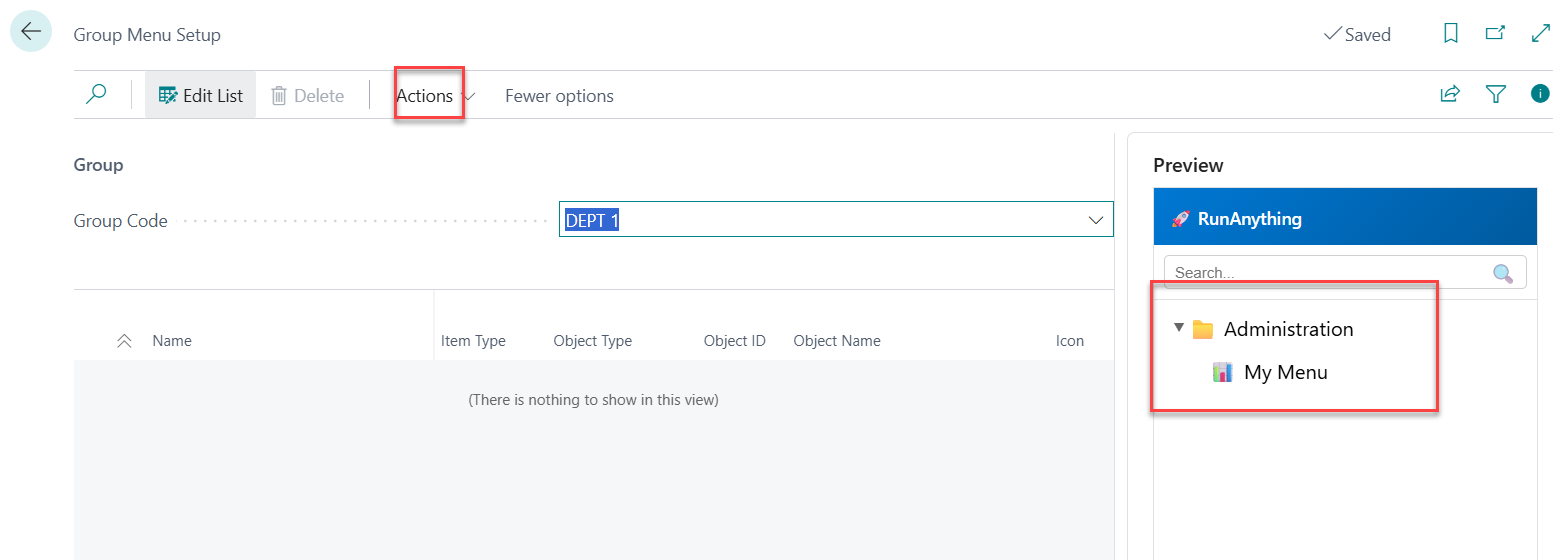
In Actions you can find the same Options as for the user menu. Lets create a new folder called Accounting and add the chart of accounts page as an item.
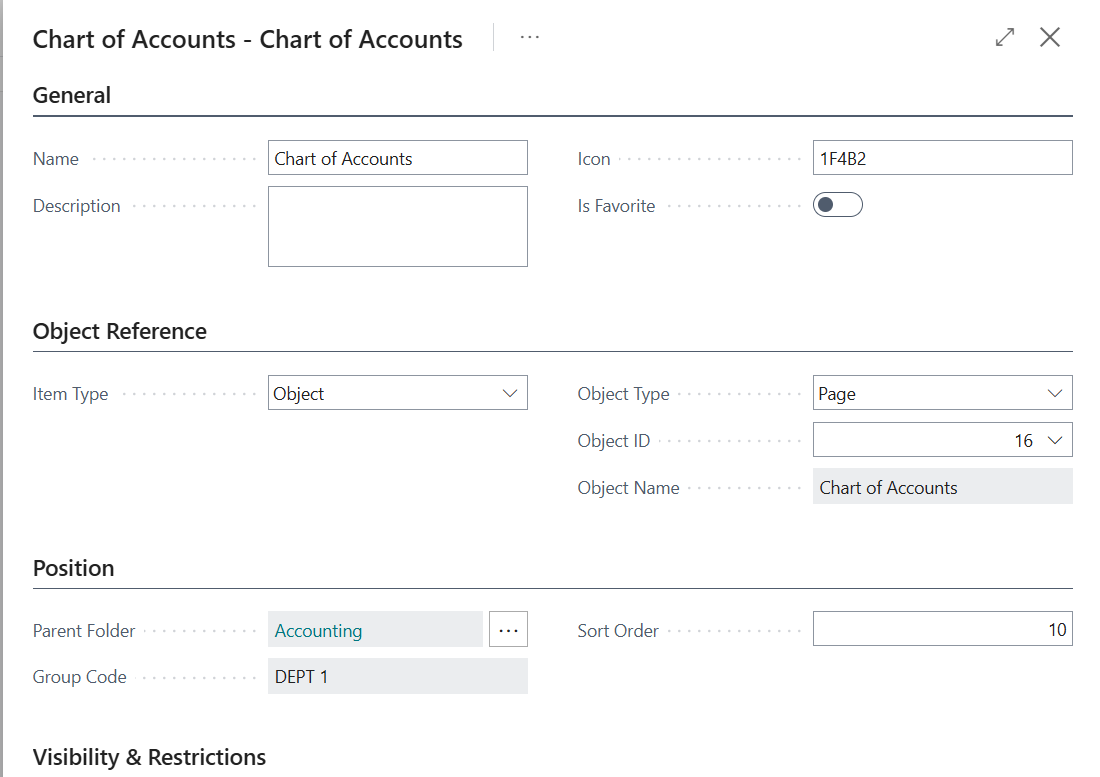
In case you wonder I the page we are looking for is 16. And Check out the Icon field I did add an💲sign in there and it was transfered to the unicode value. But it will be shown correctly in the tree view.
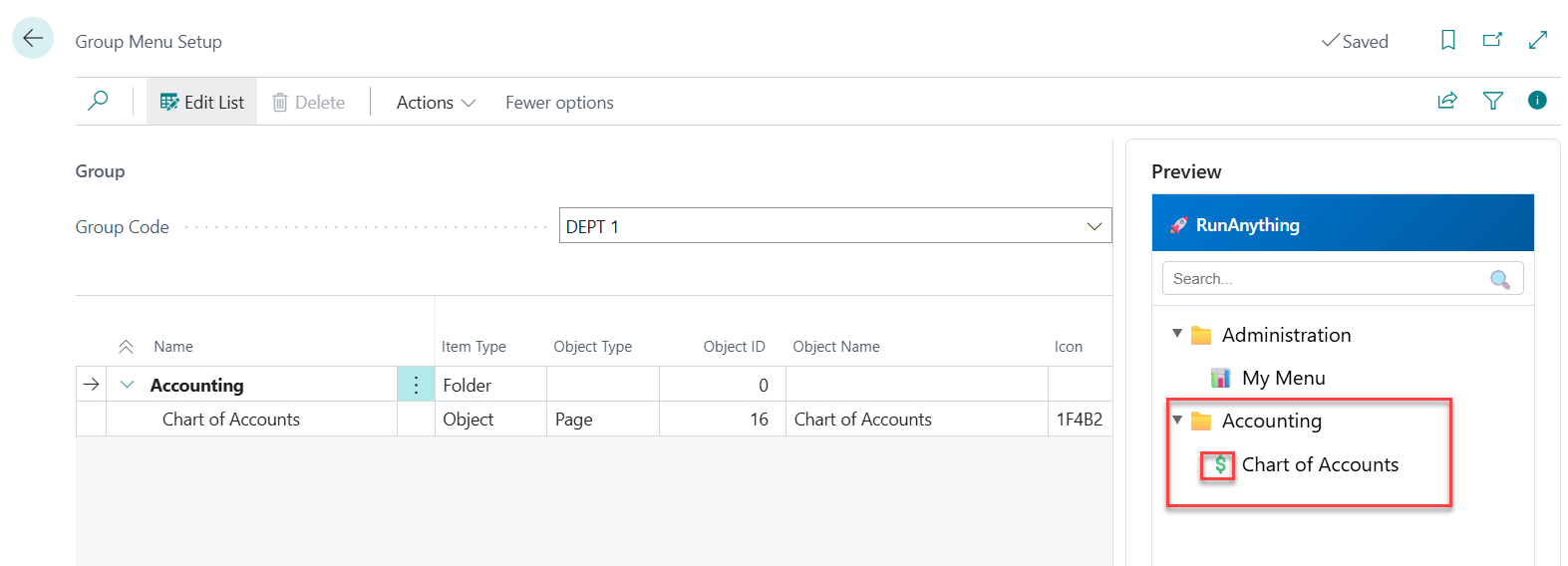
Now lets create a menu for Dept 2 which I called Sales and lets add the list of Sales Orders in there.
This will not work for me, as I can only add items to a group menu I am part of or if I am marked as Admin in the User Settings. Lets first add me to the group (I can later remove myself) and create the menu. Sales List is the page we are looking for and that is page 45.
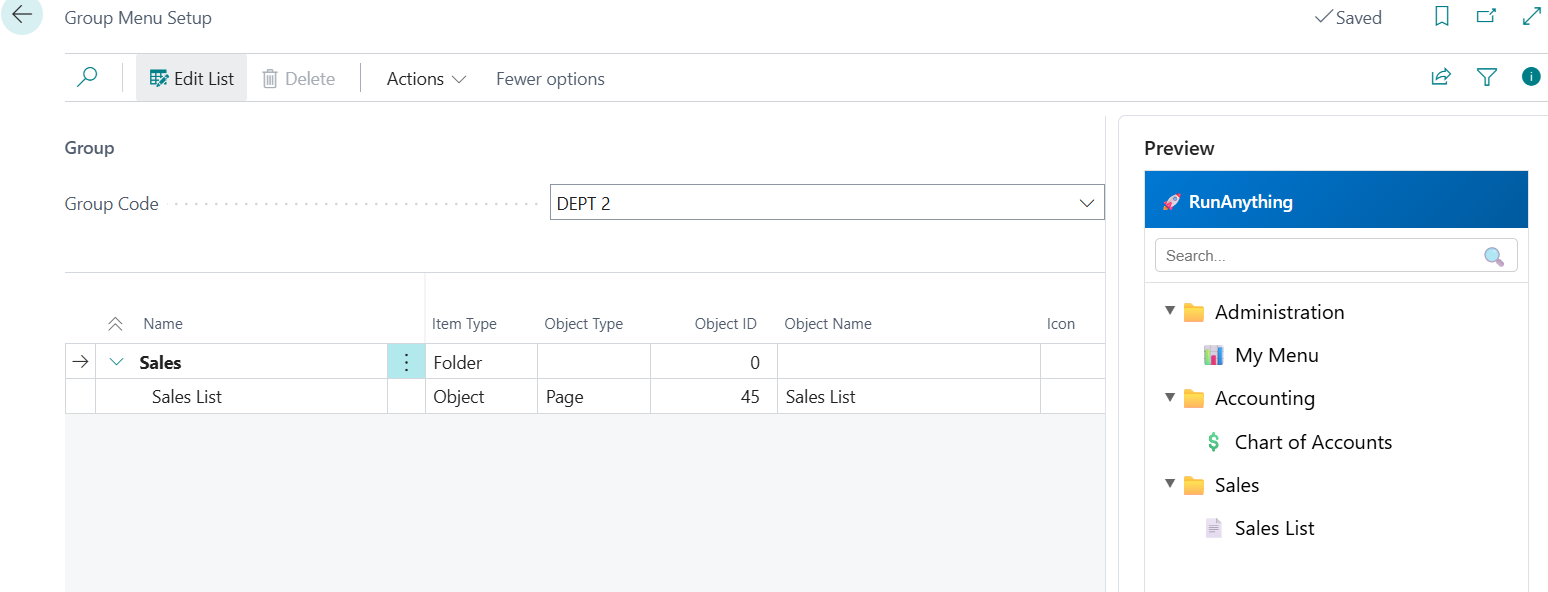
If I now remove myself from the group and show my role center.
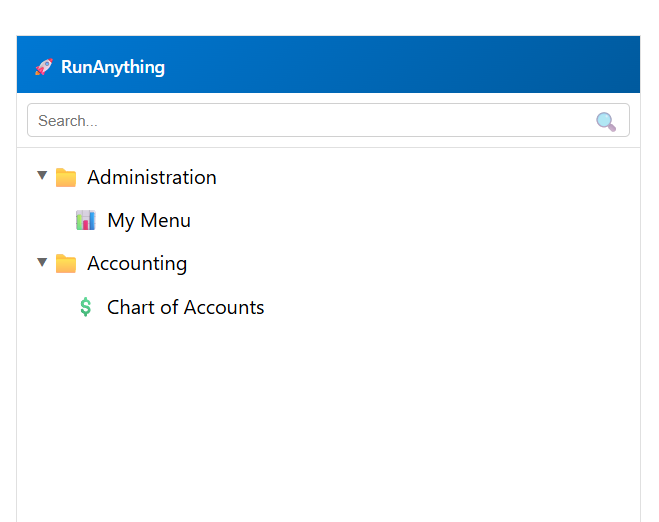
You can be part of many groups. All menus will be added to your tree.
Global Menus
Search for Global Menu Setup and you will get a third place where you can setup menus. These menus will be shown for everyone. Lets create a help entry here bringing you to the Microsoft Learn page.
So when creating the new Item switch the type to URL and in the URL field enter https://learn.microsoft.com/de-de/dynamics365/business-central/
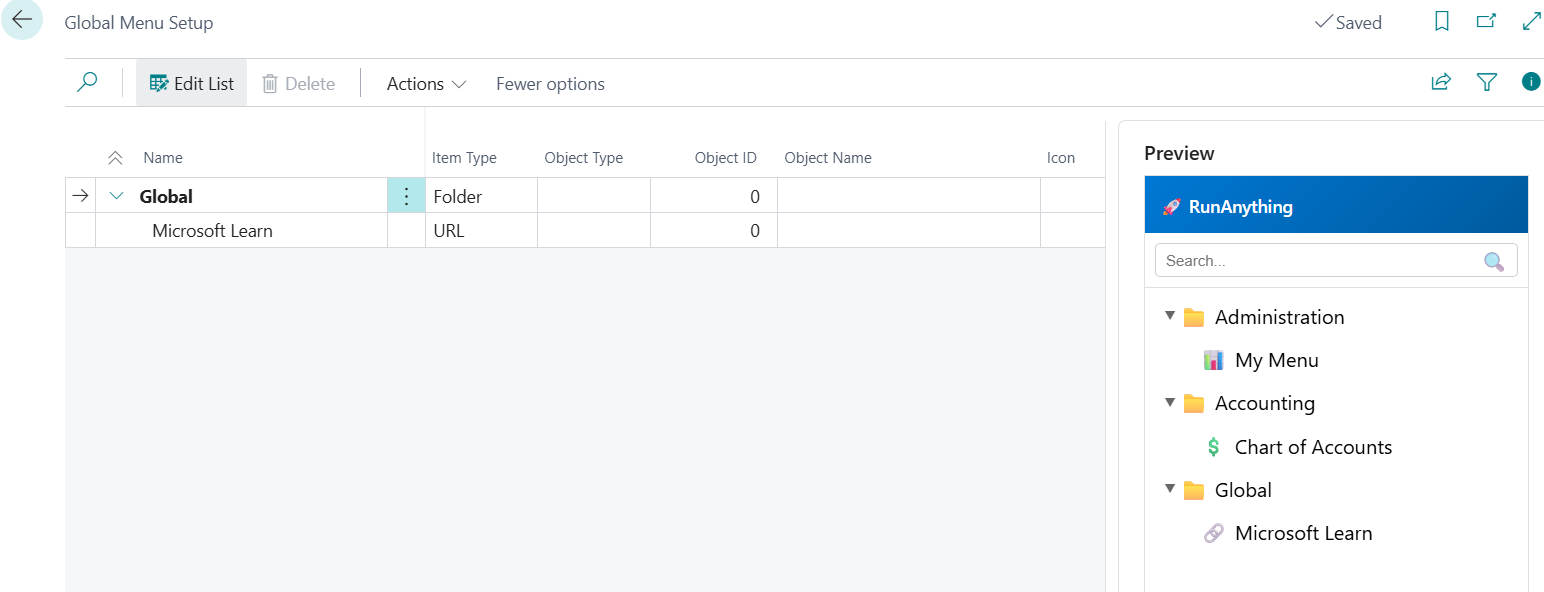
You are not restricted to one level of folders. You can nest folders and create a complex struture to run.